

Google Calendar vs Glance
Why Google Calendar drives me a little crazy (and how I use Glance to see my full year instead)
Can I be honest? I love Google Calendar. I’ve been using it for over a decade, pretty much every single day. It’s where my work schedule, dentist appointments and dinner plans all live, and I wouldn’t want to give that up.
But it also drives me a little bit crazy.
The more I relied on it, the more I noticed all the little things that got in the way, especially when I tried to plan further ahead than this week or this month. So I made a short video showing exactly what I mean, with Google Calendar and Glance side by side. You can watch it below, or continue reading.
What drives me crazy about Google Calendar
- Planning ahead means flipping month by month. I like to plan more than just this week. Maybe it’s a vacation a few months out, or I just want to shape up my year and figure out when to use my vacation days. To do that, I have to flip through one month at a time while trying to remember what I saw in the month before.
- Switching between month and week views means constantly toggling calendars on and off. In month view, I keep most of my calendars turned off so it doesn’t get cluttered. But when I switch to week view, that setup isn’t useful anymore, so I turn the other calendars back on. Then I go back to month view and, well, it’s way too much information. So I turn them off again. And on and on it goes.
- The year view doesn’t show your events. Google Calendar does have a year view. But if you don’t mind me saying so, it’s basically useless for planning, because it doesn’t show any of your events. It’s just dates.
Sound familiar? Then you’ve come to the right place.
So we built our own
To preserve my sanity, we decided to build Glance. We wanted to see more of our time at once, plan ahead, and shape our year the way we want to.
Glance is a year at a glance calendar that connects to your Google Calendar. It’s not a new calendar you have to fill in from scratch. It’s your same calendar, just shown in a way that makes long-term planning a lot easier.
Google Calendar and Glance, side by side
In the video, I have my Google Calendar open on the right and Glance on the left, both connected to the same Google account. Same events, same amount of space on the screen.
On the right: one month.
On the left: seven months of my time, all at once. Without clicking a single time.
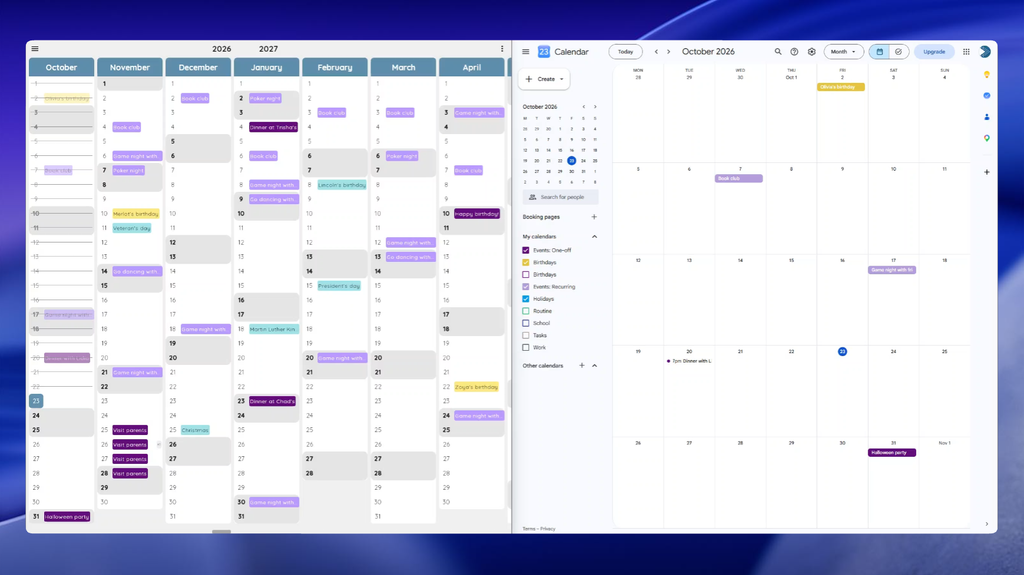
How Glance fixes the things that bugged me
1. See as many months as you want
In the video, I’m showing seven months on my screen, because it fits well and I can still easily read my events. But you can also zoom in to focus on three months, or even a single month. Or zoom out and see pretty much a whole year.
How much you see also depends on your screen. On a bigger monitor, I can see all the way into 2028. (Planning that far ahead might be a bit much, but hey, it’s nice to have the option.)
2. Separate calendars for the year view and the day view
This is the one I’m most excited about, because it fixes my biggest daily annoyance. When you open the side panel in Glance, you see the exact same calendars as in your Google account. But for each one, you get two toggles: one for the year view and one for the day view. So you decide where each calendar shows up, once.
Here’s how I use it:
- Year view: only the bigger things. Holidays, trips, one-off appointments. If I added every event, it would get way too cluttered.
- Day view: the everyday stuff too, like my work schedule.
So when I’m looking at my year, I see the big picture. When I zoom into a day, my work schedule is right there. And no matter which day I open, I never have to toggle anything on or off again. Finally!
Want to try it for yourself?
Those are the two things I use every single day, but there’s a lot more in Glance that I didn’t get to in this post and video (I’ll save those for the next one).
Since Glance connects to your Google Calendar, your events are already there the moment you sign up. No starting over, nothing to copy across. It’s free to get started, and you can use it in your browser or on the Android app.
I’d love to hear from you. What frustrates you most about your calendar? Or is there something you’d like me to show in the next video? Let me know in the comments.
Happy planning!
We’d love to hear from you! Whether it’s a question, feedback, or just to say hi, fill out the form or send us a note at team@getglance.io.
For tips on planning smarter, sign up to our newsletter here.